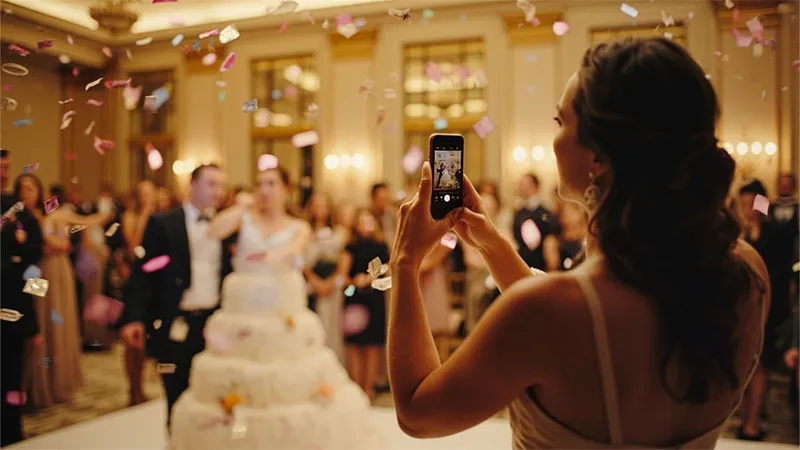

Every corporate event ends with the same question from the client: "Can we have all the photos?" The official photographer covers the stage and the headshots. The rest — the team at the gala table, the crowd at the product launch, the selfie with the keynote speaker — lives on dozens of phones.
Collecting those photos is easy if you plan it from the start. Here is a checklist for planners running conferences, launches, gala dinners, award nights and team days in Cyprus.
Before the event
1. Agree on what the client wants
- Is the album for staff only, or for clients and partners too? This decides how private it should be.
- Should photos appear live on a screen at the venue?
- Who needs the photos afterwards? Marketing, HR or the client's agency.
- How long should guests be able to upload? One evening, or a three-day conference.
2. Choose the package that fits
With Kukuva you pay once per event, with no subscription:
- Free (€0) suits a short internal gathering: 150 uploads, open for 3 hours, kept for 14 days.
- Plus (€49 + VAT) suits most single-day events: 400 uploads, open for 9 days, kept for a year, original quality.
- Pro (€99 + VAT) suits conferences and large events: unlimited uploads, open for 30 days, kept for 2 years, frames around photos and no Kukuva branding.
You can upgrade at any time and pay only the difference. Invoices include 19 % Cyprus VAT, and you can pay by card, PayPal or bank transfer — handy for a company's accounts department.
3. Brand the album
Corporate clients notice details. Set up:
- the company's colours and fonts
- a cover image and a background image
- a welcome screen with the event name and a short message
- a clear link name, like album.kukuva.cy/acme-summit-2026
- a countdown before the day, if you share the link early
On Pro, remove Kukuva branding and add a frame with the event logo around every photo.
4. Prepare the QR code materials
Use the QR designer to make the code match the brand, then print:
- table cards for gala dinners and seated sessions
- A4 posters for the registration desk, the coffee area and the photo spot
- a slide with the QR code for the opening and the breaks
Put the link in the welcome e-mail and the event app or agenda too.
5. Plan the live photo wall
A live wall on a TV, projector or LED screen gets people sharing fast. Decide:
- Where it goes. The coffee area, the bar or beside the stage between sessions.
- When it runs. Breaks, lunch and the evening programme work best. Keep the main screen for the speakers.
- How it looks. Timing, transitions, captions and where the QR code sits on the wall.
Talk to the venue's AV team early. The wall is a web page, so any screen with a browser works.
6. Set the rules for moderation
At a company event, one wrong photo on a big screen is one too many. Turn on approval, so every photo is checked before it appears on the wall. Invite a colleague or someone from the client's team as a co-host, so moderation is shared and nobody needs your password.
7. Check privacy settings
Corporate guests are more careful about where their photos go. Decide whether to:
- protect the album with a password
- make it upload-only, so guests add photos without browsing others
- turn off guest downloads
- turn off the "your name" box
Kukuva removes location data from shared photos and stores files in the EU. Two-step sign-in is available for the host account.
During the event
8. Announce it early
Ask the host or the first speaker to mention the album in the opening. A simple line works: "Scan the QR code on your table and share your photos of today."
9. Use photo challenges
Give guests reasons to take part. Ideas for corporate events:
- a selfie with someone from another department
- the best photo of the keynote
- your team at the gala table
- the view from the venue terrace
Guests can like photos, and the most liked can appear on the wall. Announce a "photo of the day" at the closing — it is a small, fun moment.
10. Collect more than photos
Guests can add videos and short written messages. You can also add a guest form with questions guests answer when they upload, such as their company or which session they enjoyed most. Export the answers as a CSV after the event.
11. Keep an eye on the wall
Have the co-host approve photos during the breaks, remove anything off-brand from the wall and add captions to the best shots. Guests' uploads resume by themselves if the venue Wi-Fi is weak, so ask them to keep the page open.
After the event
12. Deliver the photos
- Download all the photos and videos as a ZIP, in original quality on Plus and Pro.
- Download a selection for the client's newsletter or social posts.
- Share the album link with guests as a thank-you, or keep it for the organisers only.
13. Tidy up and close
Check the bin for anything deleted by mistake (deleted items stay there for 30 days). When the storage period ends, the files are deleted. Download what you need to keep before then.
Quick checklist
- Client goals agreed: audience, live wall, delivery
- Package chosen for the length and size of the event
- Album branded: colours, fonts, cover, welcome screen, link name
- QR code designed, table cards and posters printed
- Live wall screen booked with the venue's AV team
- Approval on, co-host invited
- Privacy settings decided
- Album announced at the opening
- Photo challenges set
- Photos downloaded and delivered to the client
Planning several events a year? Each event is set up separately, so you only pay for the events you run. See all the features or compare the packages.